
The Fastest Ways to Handle Team Photo Sharing This Season
The Fastest Ways to Handle Team Photo Sharing This Season

For game-day snapshots, use a QR/link collector so anyone can drop in photos without downloading an app. For season-long archives, use Google Photos or Apple iCloud Shared Albums. For one polished team photo everyone will actually use for the roster page or the holiday card, an AI group-merge tool beats chasing 15 people around a field for a group shot.
Privacy matters more than most organizers think about until something goes wrong. A public link means anyone with the URL can view (and sometimes download) the photos, while invite-only access keeps things inside the roster.
- Game day: QR/link collector (LensGo, Picly, Picsui)
- Season archive: Google Photos or Apple iCloud Shared Albums
- One great team photo: AI group-merge tool (GoStudio.ai)
- Privacy default: invite-only over public link, always
Key Takeaways
Team photo sharing works best when the method matches the moment: QR collectors for game day, shared albums for the season, AI merges for one polished shot, and invite-only access whenever privacy is even slightly in question.
| Point | Details |
|---|---|
| Match method to moment | Use QR/link collectors for live games, shared albums for season archives, and AI merges for one polished team photo. |
| Default to invite-only | Reserve public link access for adult recreational teams with no privacy concerns raised. |
| Cut contributor friction | No-app QR flows get more photos from more people than any tool requiring a download or account. |
| Get consent before compositing | AI group-merge tools blend real faces into synthetic images, so ask before including anyone. |
| Centralize the workflow | Roster Sports keeps the game link, roster, and chat in one place, making it easy to post the photo link where the team will see it. |
Table of Contents
- What Are the Best Methods for Team Photo Sharing?
- How Do You Create a Shared Album for Team Photos?
- How Do QR Codes and No-App Tools Work for Team Photos?
- Can AI Tools Fix or Merge Your Team Photos?
- How Should You Handle Privacy When Sharing Team Photos?
- Which Photo-Sharing Method Fits Your Team?
- Sources
What Are the Best Methods for Team Photo Sharing?
Four categories cover almost every situation a sports team runs into, and each one trades off differently between ease, privacy, and quality.
Shared albums (Google Photos, Apple Photos) work through an existing account ecosystem. Setup takes two minutes, but every contributor needs the matching account type, which is where these tools quietly fail teams with a mixed iPhone and Android roster.
Cloud folders (OneDrive, Google Drive) offer more granular permission control, useful for a manager who wants some players uploading and others only viewing. The tradeoff is a slightly clunkier upload experience for casual contributors who aren't used to navigating folder structures on a phone.
QR/link collectors (LensGo, Picly, Picsui, Camdeed) skip accounts entirely. Someone scans a code or taps a link, uploads straight from the browser, and never installs anything. LensGo's group photo tool stores images at full resolution and keeps access private via the link itself, no app required.
AI photo fixes (GoStudio.ai, OmniPhoto AI) solve a different problem: turning a folder of imperfect shots into one clean image.
- Shared albums: fast setup, but locked to one account ecosystem
- Cloud folders: strong permission control, more friction for casual uploaders
- QR/link collectors: zero friction for contributors, best for live events
- AI fixes: best for a single, polished result, not for ongoing collection
How Do You Create a Shared Album for Team Photos?
Setting one up takes minutes on any of the three major platforms, but each has a quirk worth knowing before you invite the whole roster.
- Apple Photos: Open the Photos app, tap the plus icon, choose "Shared Album," name it (something like "Fall League 2026"), and invite people by Apple ID or email. The catch: contributors without an Apple ID have to accept a web link instead, and image quality can drop slightly depending on iCloud storage settings.
- Google Photos: Create a new album, tap "Share," and either generate a link or invite specific people. Check the "collaborative album" setting so others can add photos, not just view them. Google's free storage tier caps out fast if your team shoots a lot of video, so keep an eye on space.
- OneDrive: Create a folder, right-click "Share," and choose between "Can edit" and "Can view" permissions. Organize by date and opponent (e.g., "2026-09-14 vs Riverside") so nobody has to scroll through 400 unsorted images to find the championship game.
Pro Tip: Name files or folders by date and opponent before sharing, not after. Renaming 200 photos retroactively is a Saturday nobody wants to lose.
How Do QR Codes and No-App Tools Work for Team Photos?
Getting 18 players to download and open a new app before kickoff is the single biggest reason team photo albums end up half empty. QR and link-based collectors remove that step entirely. Someone opens their camera, scans a code, and their browser goes straight to an upload page.
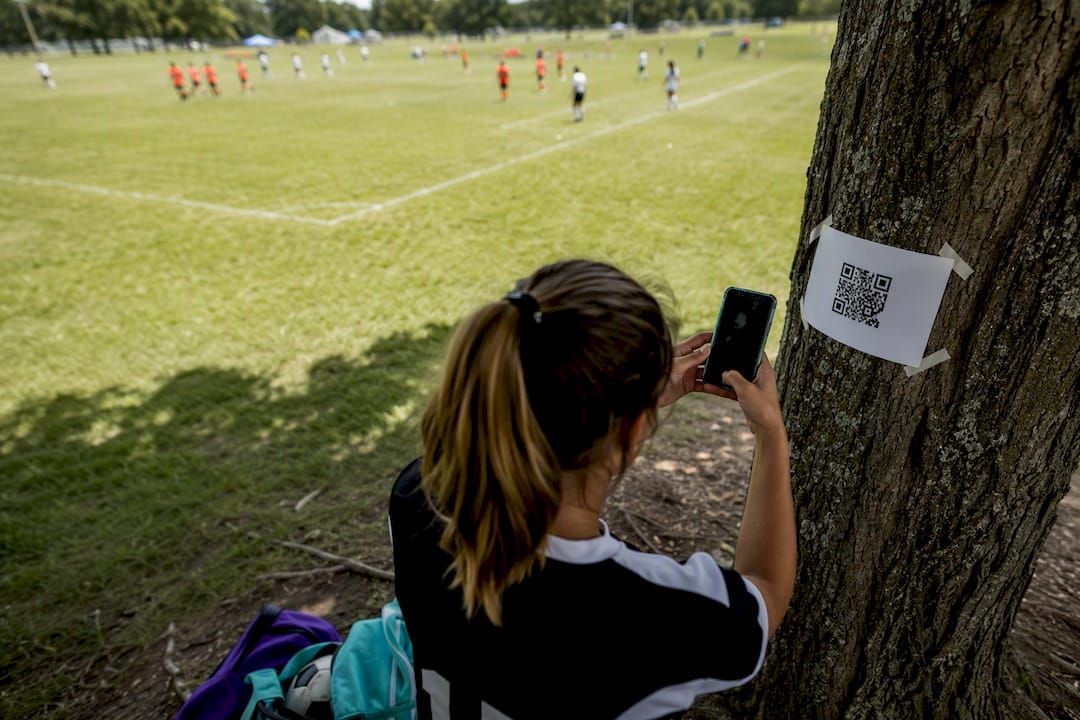
That difference in friction is exactly why Picly's approach skips account creation for uploaders and hands each project a unique link and QR code, with export to ZIP or Google Drive when the game's over.
A simple game-day flow looks like this:
- Create the album or project on your chosen platform before you leave the house
- Generate the QR code or link and save it somewhere you can pull up fast
- Post the link in the group chat and tape a printed QR code to the bench or scorer's table
- Check in once at halftime to moderate anything that shouldn't be there
- Download or export the full set once the game wraps
Picsui's event tools add moderation and a live slideshow, handy if you want photos displaying on a tablet near the sideline in real time. When picking a tool, prioritize moderation controls, export formats, and how long the platform keeps files live.
Pro Tip: Post something short in the group chat like: "Drop your game pics here, no app needed: [link]. Photos live for 30 days, then I'll archive the best ones."
Can AI Tools Fix or Merge Your Team Photos?
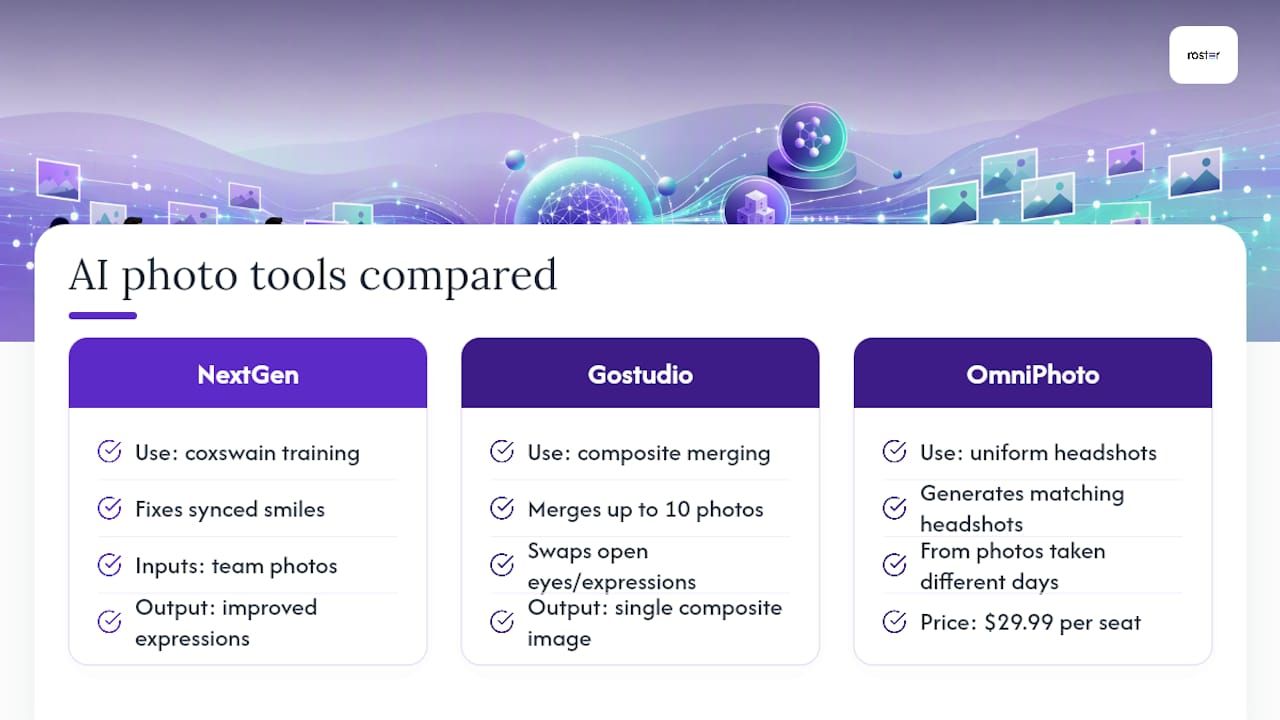
Getting 20 adults to smile at the same camera at the same moment is close to impossible, which is the exact problem NextGen Coxing's AI-powered coxswain training tools address for small-team sporting contexts. Gostudio can merge up to 10 separate photos into one composite, swapping in open eyes or better expressions from other shots in the batch.
Team headshot generators like OmniPhoto AI go further, producing matching, uniform-style headshots from photos taken on different days with different lighting. Vendor pricing for these headshot tools runs around $29.99 per seat in some marketed packages, and turnaround is usually fast since the processing is automated rather than scheduled around a photographer.
The limits matter as much as the upside. Compositing multiple faces into one image is a form of synthetic content, so get explicit consent before you merge anyone's photo into a composite they didn't pose for. Artifacts around hands, hair, and overlapping bodies still show up more often than vendor marketing suggests. Save AI merging for the season photo everyone will actually use, and stick to a quick group snap or a simple collage for everything else.
How Should You Handle Privacy When Sharing Team Photos?
A link that "anyone with the URL" can open is not the same as an invite-only album, and mixing the two up is how team photos end up somewhere they shouldn't.
- Use invite-only access for anything involving kids, minors, or players who've asked to opt out of public sharing
- Use link access only for adult recreational teams where everyone's comfortable with a broader audience
- Post a one-line consent note before the season starts: "Photos from games may be shared in the team album or group chat. Message me if you'd rather not be included."
- Store originals in one place (a shared album or cloud folder), not scattered across five people's phones
- Do a cleanup at season's end: archive the best shots, delete duplicates, and revoke link access once the album's no longer active
- If someone asks a photo come down, remove it from the album and confirm the link no longer shows it
Which Photo-Sharing Method Fits Your Team?
Match your answers to these three questions and the right method usually becomes obvious.
- How many people need to contribute? Under 10 with matching accounts, a shared album works fine. Over 15, or a mixed device crowd, go with a QR/link collector.
- Do you need a polished, single team photo, or a running archive? Polished and singular points to an AI merge tool. Ongoing and casual points to Google Photos or iCloud.
- How sensitive is the group about privacy? Any hesitation at all means invite-only, not a public link.
Red flags worth avoiding entirely: any tool that forces an app install before viewing, any platform with zero moderation on public uploads, and any default setting that makes your album publicly searchable without you choosing it.
An Organizer's Four-Step Game-Day Playbook
Set the album or QR link up the morning of the game, not five minutes before kickoff. Here's the flow I'd run every week: create the collector link, drop it in the group chat with a one-line note, tape a printed QR code near the bench, then archive the best shots that Sunday night.
Two copy templates worth stealing: for the group chat, "Game pics go here, no app needed: [link]." For the sign near the bench, "Scan to add your photos. Link active through Sunday." Always get a quick opt-out check from anyone new to the roster before the season starts, and pick one place, and only one, to archive everything once the season ends.
— Daniel
Where Roster Sports Fits Into Your Photo Workflow
Chasing down RSVPs, sending three reminder texts, and then hunting for that one photo link buried under 40 unread chat messages is the actual problem here, not the photos themselves. Roster Sports centralizes the game details, the roster, and the group chat into one link, so the QR code or album link for that week's photos has an obvious home instead of getting lost in scroll.
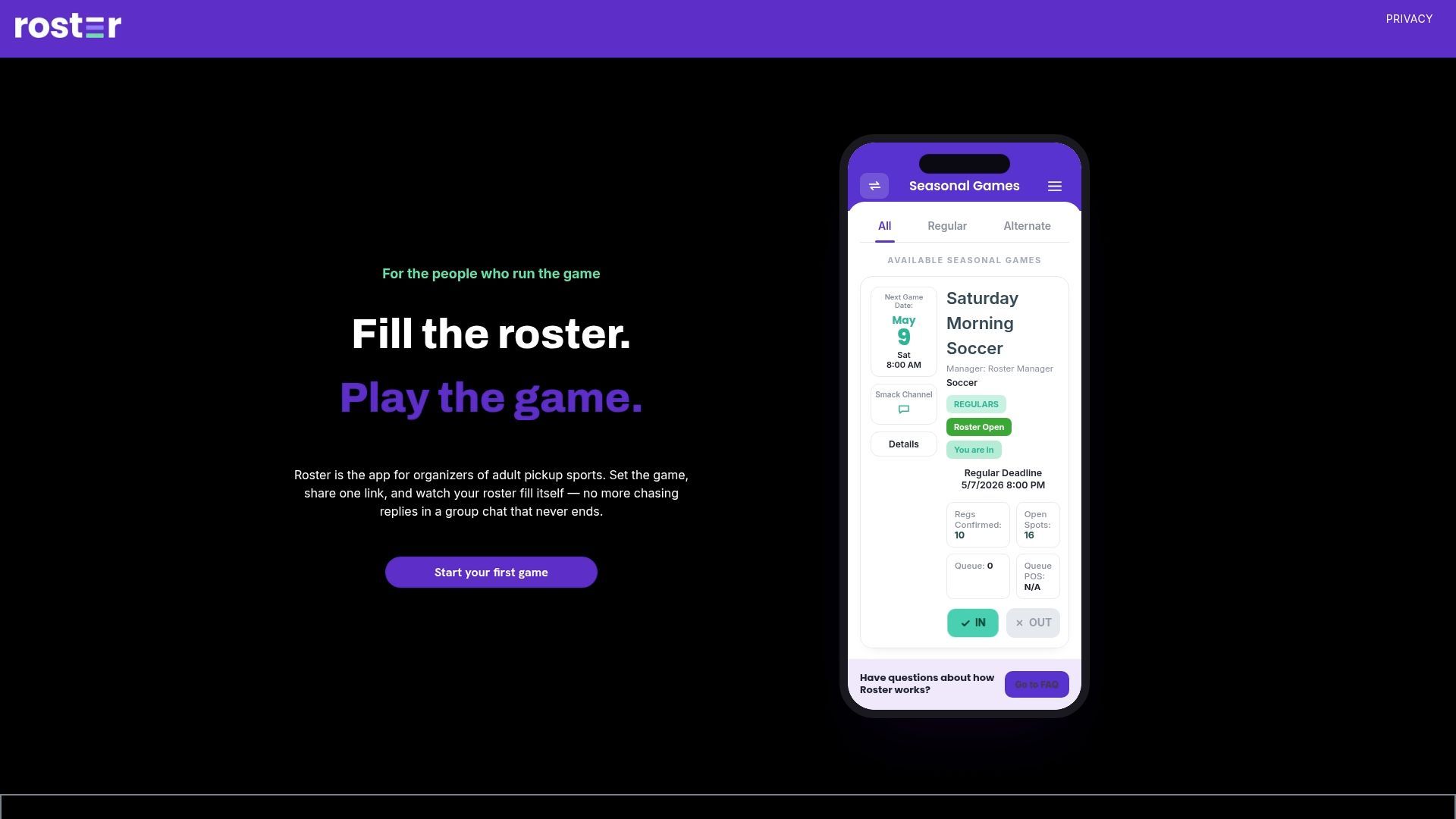
Post your photo link or QR code directly on the game page inside the game management app, right alongside lineup confirmations and the group chat, so nobody has to dig through old messages to find last week's pictures. If you're still managing your roster through a group chat and a spreadsheet, set up your next game and see how much less coordinating you actually have to do.
Sources
Recommended