September 21, 2026
Publish a Roster Link in Minutes for Pickup Organizers


Publishing a roster link means generating one live, read-only web address for your team roster, then sending that single URL to your players instead of a spreadsheet or screenshot. Open your roster, hit publish or share, copy the link, and send it through email, text, or your group chat. That link updates automatically as you edit the roster, and most tools let you password protect it or set an expiration date.
TL;DR:
- Most roster platforms require admin or manager access to generate a live, auto-updating shareable link; use incognito testing to confirm proper permissions.
- Distribute the roster link via email, group chat, or calendar, and set appropriate access controls such as passwords or expiration dates based on privacy needs.
- Keep the same live link active throughout the season, sending reminders before each game and pinning it in channels to prevent outdated versions.
- Understand whether your tool pushes updates instantly or requires re-publishing to avoid confusion from silent editing failures.
- Using a single, constantly updated link prevents team members from referencing outdated screenshots or multiple versions, saving time and reducing errors.
Table of Contents
- How to Publish a Roster Link Step by Step
- Sharing the Link: Channels, Passwords, and Notifications
- Best Practices for Keeping the Link Current
- Editing, Unpublishing, and Fixing Access Problems
- Why One Live Link Beats a Folder Full of Screenshots
- Publish Your Roster Link in Minutes With Roster
- Sources
- FAQ
How to Publish a Roster Link Step by Step
Before you touch the publish button, check that you actually have manager or admin rights on the roster. Plenty of organizers waste ten minutes hunting for a "publish" option that's grayed out simply because they're logged in as a regular player, not the account owner.
Once you've confirmed access, work through this sequence:
- Review the draft roster first. Scan for open spots, scheduling conflicts, and anyone who's flagged as out. Fixing errors before publishing saves you from sending a second, corrected link an hour later.
- Find the publish or share control. Most platforms tuck this into an actions menu, a dropdown next to the roster name, or a button labeled "Share" or "Publish." A game management app typically surfaces this option right on the game or season page rather than burying it in settings.
- Generate the link. Clicking publish creates a public or semi public URL tied to that specific roster or game.
- Copy and test it immediately. Paste the link into a private or incognito browser tab. This shows you exactly what your players will see, and it catches permission errors before anyone else does.
- Confirm how updates behave. Some tools push edits to the live link instantly. Others require you to re-publish after every change. Test this once with a small edit, like swapping a player's position, so you're not guessing later.
That last point trips up more organizers than anything else. A roster that looks published but silently stopped updating is worse than no link at all, because everyone assumes it's current.
Pro Tip: Bookmark the published link yourself right after you create it. It sounds obvious, but organizers who skip this step often end up regenerating a second link by accident, which splits your group between two versions of the roster.
Sharing the Link: Channels, Passwords, and Notifications
How you distribute the link matters almost as much as creating it. Different audiences call for different levels of access and different delivery methods.
Distribution channels worth using:
- Direct email, especially if your tool auto-generates a formatted message with the link embedded
- Text message for fast-moving pickup groups where players check phones more than email
- Group chat platforms like WhatsApp or Telegram, where you can pin the link so it doesn't scroll away
- Calendar invites, which keep the roster link visible alongside the game time and location
- Embedding the link on a public team page, useful for leagues that want walk-up visibility
Access controls to decide on:
- Read-only view for anyone with the link, no login required
- Password protection when the roster contains information you don't want publicly indexed
- Expiration dates that automatically cut off access after the season or tournament ends
- Manual revocation for one-off situations, like removing access after a player leaves the team
Some scheduling tools build password protection and expiry settings directly into the share flow, so you don't need a separate service to lock things down.
The right setup depends on context. A public charity tournament benefits from an open, embeddable link that anyone can pull up. A closed adult league with recurring Venmo payments between players and a manager probably warrants password protection, since the roster may include contact details or payment status you'd rather keep off the open web.
Best Practices for Keeping the Link Current
The single biggest mistake organizers make is treating the roster link like a one-time announcement instead of a living document. Send one canonical link and resist the urge to email a new spreadsheet every time something changes. Forked files are how half your team ends up looking at last week's roster.
- Send the link the moment you publish, then again 48 hours before the game, then once more the morning of
- Pin the link at the top of your group chat or attach it to the calendar event so it's never buried in scroll history
- Use a short, direct message rather than a paragraph explaining the whole season
- Lean on your tool's automatic notifications when available instead of retyping the same message every week
A message template that works well: "Roster's live for Saturday's game, here's the link: [URL]. Reply if you can't make it so I can pull from the waitlist." Short, specific, and it tells players exactly what action to take.
Message elements that reliably increase RSVP response include a clear deadline and a direct ask, not just a link with no context.
Pro Tip: Send the day-of reminder even if nobody's responded to the first two messages. Silence usually means people forgot to check, not that they're skipping the game.
Editing, Unpublishing, and Fixing Access Problems
Most platforms handle edits one of two ways: instant propagation to the live link, or a required re-publish step. Test this once on your specific tool so you're not assuming the wrong behavior mid season.
- To unpublish, look for a revoke or unpublish action in the same menu where you created the link, then notify players directly since the URL will stop working without warning otherwise.
- If players report a broken link, check for expired settings first, then rule out browser caching by asking them to reload or open the link in a private tab.
- For permission errors, confirm the link wasn't accidentally set to admin-only view instead of public read-only.
- Verify a submitted or shared roster by opening the link yourself before accepting it, a habit borrowed from league administrators who confirm rosters before finalizing them.
- Export a PDF snapshot when you need an offline record or when a player specifically asks for something they can print or save without internet access.
Why One Live Link Beats a Folder Full of Screenshots
Every organizer who's managed a group chat roster knows the specific headache of five people asking "wait, is this the current list?" on the same Tuesday. A published link solves that because there's only one version to check, not four screenshots and a spreadsheet someone forgot to update.

The checklist is short enough to memorize: publish, copy, test, send, pin, remind. Organizers who skip the test step are the ones who find out the link was broken only after three players texted asking why it wouldn't load.
What's underrated here isn't the link itself, it's the time it gives back. Chasing RSVPs across email, text, and three group chats is exactly the kind of logistics work that keeps organizers from actually playing the game they organized in the first place.
— Daniel
Publish Your Roster Link in Minutes With Roster
Roster gives adult pickup organizers exactly what this whole process is built around: one shareable link that stays live, fills open spots automatically, and builds a waitlist the moment someone drops out. Instead of manually re-publishing after every edit, the roster updates in real time, and the app tracks who owe payment without you chasing anyone down individually.
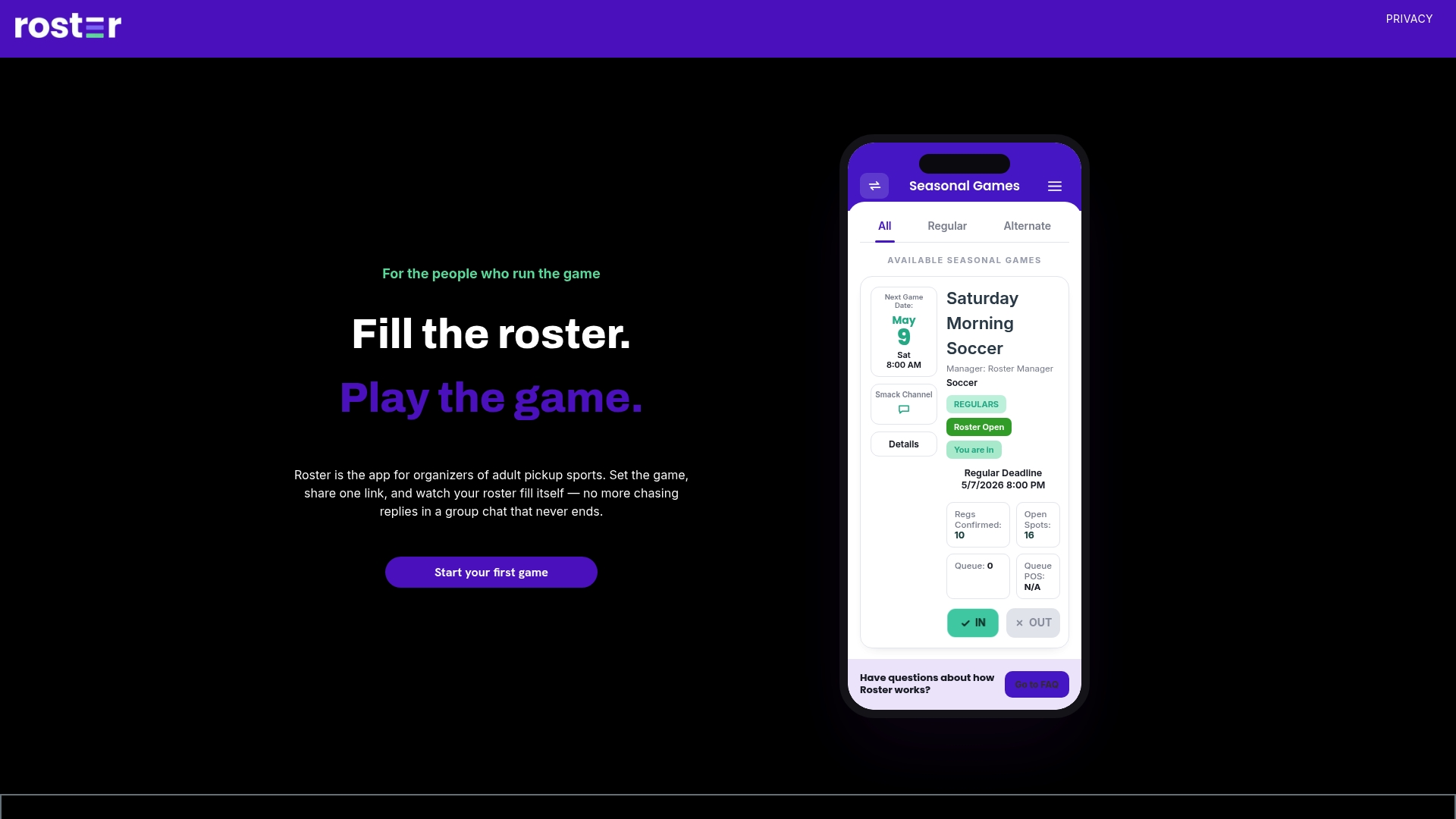
If you're still managing signups through group chat threads or spreadsheet attachments, Roster replaces that entirely with a single link tied to real-time roster management and basic peer-to-peer payment tracking between players and managers. Check out the app's link-sharing features and try creating your first published roster link for your next game.
Sources
For readers who want to go deeper on the mechanics covered here, the Roster app-links page documents how published links behave, and the game invite message guide has ready-to-use templates. For league-side verification procedures, this roster submission administration guide walks through how admins confirm a submitted link before accepting it. Organizers running tournaments may also find value in this team-building guide for tournament play.
- Online Sports Statistics System - Roster Submission
FAQ
What Does "Publish a Roster Link" Actually Mean?
It means generating a single, shareable web address that shows your current roster in a read-only view. Anyone with the link can see the roster without needing an account, and the link updates automatically when you edit the roster in most tools.
How Do I Password Protect a Roster Link?
Look for a share or access settings menu when you publish, most platforms that support this feature let you add a password or expiration date right in that flow. This works well for closed leagues that don't want the roster publicly searchable.
Will Players See My Edits Automatically?
It depends on the tool. Some platforms push every edit to the live link instantly, while others require you to re-publish after changes, so test one small edit right after your first publish to confirm which behavior yours uses.
What's the Best Way to Notify Players About a New Roster?
Send the link once at publish time, again 48 hours before the event, and a final reminder the day of. Short, specific messages with a clear call to action get better response rates than a long explanation.
Does Roster Sports Support Publishing a Shareable Link?
Yes. Roster is built around a single shareable link that stays live, automatically fills open roster spots, and manages a waitlist when players drop out. Pricing details aren't listed publicly; please visit the client's site for current rates.